You have checked the PHP version in WordPress, found a number and now you are wondering whether it means your website has received the latest security fix.
This is where things can get confusing. Your hosting account might show PHP 8.3, WordPress might show a longer number, and your host might mention something called a backported patch.
Let me help you separate what you can check yourself from what your hosting provider needs to confirm.
Start with the PHP version your website actually uses
Your hosting may offer several PHP versions. The useful starting point is the one currently running your website.
- Log into your WordPress dashboard.
- Go to Tools → Site Health.
- Open the Info tab.
- Expand Server.
- Note the full PHP version number.
Checking this information does not change your website. You do not need to install another plugin.
If you manage several websites, check each one. Sites with the same hosting provider can use different PHP settings.
What does the version number tell you?
For the security release issued on 21 October 2026, PHP published fixes in 8.2.35, 8.3.36, 8.4.27 and 8.5.12. Later patched releases within these series may also include the fixes.
If your website is on PHP 8.2, note that 8.2 reaches the end of its security support on 31 December 2026. WordPress recommends PHP 8.3 or greater, so plan a compatible move before then.
Seeing one of those releases is useful evidence that the running PHP includes the fixes. It does not prove that every part of your website is secure or that there has been no previous compromise.
An older number needs checking with your host, because some providers apply backported security fixes.
Why a patched website might show an older number
A backported fix applies a security repair to an older software version. The main version number may remain the same.
Think of it as repairing the lock on an existing door.
You cannot reliably establish whether this has happened just by looking at a build date or a short version label in your hosting account.
Your provider needs to confirm that its patched package is installed and active for the PHP serving your website.
Check the host’s announcement carefully
Read the latest official notice in your hosting account or on the provider’s status page. Check its date, the affected services and whether the work is complete.
- Patches available: fixes have been released, but your server may still need updating.
- Deployment underway: updates are being applied, but your service may not be finished.
- Temporary protections in place: measures may reduce exposure while patching continues. Learn what temporary isolation involves.
- Deployment complete: check that the confirmation covers your service and PHP setup.
If the notice answers your question, you may not need to join the support queue. If it leaves your own account’s position unclear, ask for confirmation.
A message you can send to hosting support
Include your domain and the full PHP number you found, followed by this request:
Please confirm whether the PHP currently serving my website has received fixes for both CVE-2026-109618 and CVE-2026-109619. If you have applied backported fixes, please confirm that these are active for my account. Is any action needed from me? If patching is incomplete, please advise the expected timescale and whether temporary isolation is recommended.
Keep the reply somewhere you can find it again. If the host gives a timescale, check back for completion rather than treating the estimate as confirmation. Meanwhile, here are the WordPress security checks you can make while you wait.
Avoid changing PHP just to check another version
WordPress shows your active PHP version. It does not show the patch level of every alternative your host offers.
If you need that information, ask your host. Switching the live site briefly can still cause compatibility problems.
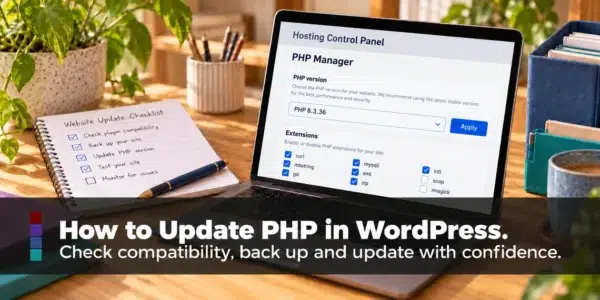
If a version change is needed, prepare with a current backup, compatibility checks and a recovery plan. You will generally need hosting access to make the change.
Want help understanding your result?
If you have found your PHP version but are unsure what it means, or your host’s reply has left you with more questions, I can work through it with you.
Through my online WordPress Help, we can check your website, understand the hosting advice and identify any preparation needed before a PHP change.
Book online WordPress Help with Natalie