If you have seen the PHP security warnings doing the rounds, you might be wondering what you actually need to do about your WordPress website.
Should you update something? Contact your hosting company? Put your website into maintenance mode?
I have been checking websites across the hosting companies I work with, including SiteGround and VentraIP. On the SiteGround websites I checked using Managed PHP, the version was already showing PHP 8.2.35, which includes the security fixes released on 21 October.
Other providers have been publishing notices and taking steps as they work through their response.
The useful first step is to check what your own website is running and what your hosting provider has confirmed.
You do not need to become a server expert. But there are a few things worth understanding before you start changing settings.
What is PHP, and what has happened?
PHP is part of the software your hosting server uses to run WordPress. It works behind the scenes while you manage your pages, posts and other website content.
On 21 October 2026, the PHP project released updates to address two critical security vulnerabilities.
These affect the PHP software on the server. Updating WordPress, your theme or your plugins alone will not apply this particular fix.
For most business owners using shared or managed hosting, their hosting provider handles the server patching.
Your host may already have applied the fixes. It may be deploying them, or it may have introduced temporary measures while that work happens.
The announcement does not mean your website has been hacked. It does mean you should promptly check the position for your website.
1. How to check your website’s PHP version
You can check this inside WordPress without changing any settings.
- Log into your WordPress dashboard.
- Go to Tools → Site Health.
- Select the Info tab.
- Open the Server section.
- Find PHP version and note the full number.

Take a screenshot for your own reference if that helps.
You are only looking at information here. This check does not update or change your website.
Which versions include the security fixes?
The PHP security releases issued on 21 October 2026 are:
| PHP series | Security release |
|---|---|
| PHP 8.2 | 8.2.35 |
| PHP 8.3 | 8.3.36 |
| PHP 8.4 | 8.4.27 |
| PHP 8.5 | 8.5.12 |
Later patched releases within these series may also include the fixes.
The full number matters. Seeing PHP 8.3, for example, does not tell you whether this particular patch has been applied.
However, an older number does not automatically mean your host has left your website unpatched.
Some providers use backported security fixes.
What is a backported security fix?
A backported fix means a hosting provider or its software supplier has applied a security fix to an older PHP version.
Think of it as repairing the lock on an existing door, rather than replacing the whole door.
Your website may still display an older PHP version number, even though the relevant fix has been applied.
That is why the number shown in WordPress is a starting point, rather than the whole answer.
Ask your host to confirm whether the PHP running your website has received fixes for both vulnerabilities covered by this release: CVE-2026-109618 and CVE-2026-109619.
You do not need to understand those names. Including them helps support identify exactly which fixes you are asking about.
An older number alone does not prove your website is unpatched. Equally, do not assume a backported fix has been applied without confirmation from your host.
What if you want to check another PHP version your host offers?
WordPress shows the version your website is currently using. It does not show the exact patch level of every other PHP version available through your hosting.
Your hosting control panel may provide more detail. If it only lists options such as 8.2 or 8.3, ask your provider to confirm the available patch level.
Avoid switching your live website between PHP versions simply to see which number appears. A version change can affect compatibility, even if you intend to change it back.
What I have found with SiteGround and VentraIP
SiteGround
When checking SiteGround websites using Managed PHP, I found the sites I checked were already running PHP 8.2.35.
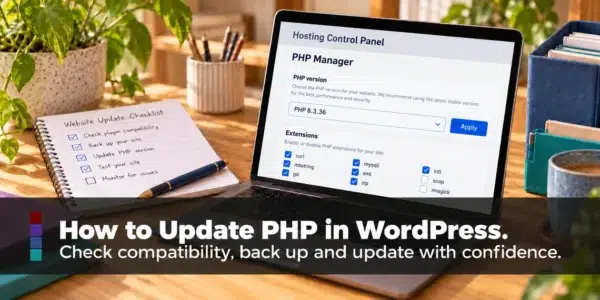
SiteGround’s Managed PHP service allows it to manage PHP version updates. You can check your website’s setting under Site Tools → Devs → PHP Manager → PHP Version.
This is what I found on the websites I checked. Your own website may use different settings, so check rather than assume.
PHP 8.2.35 includes this week’s security fixes. However, PHP 8.2 itself reaches the end of its security support on 31 December 2026, so websites on 8.2 will still need a planned move to a newer version.
VentraIP
VentraIP, which I recommend for my Australian clients, has also been sharing updates.
Here is how VentraIP’s response has progressed on 22 October:
- Patches confirmed: VentraIP advised that CloudLinux had confirmed patches for PHP versions 5.2 through to 8.5. These were being prepared so VentraIP could deploy them automatically across its shared hosting and fully managed VPS services.
- Temporary upload restriction: VentraIP introduced temporary file-upload restrictions as part of its response. These may affect website forms that accept attachments.
- Rollout underway: In its latest update, VentraIP advised that CloudLinux has now published all patched PHP versions from 5.2 to 8.5. These are being rolled out to its shared hosting and fully managed servers, and the rollout will take some time to reach every server.
VentraIP says no action is required from customers. Patched PHP will be applied automatically to cPanel services already using PHP 5.2 to 8.5. VentraIP will remove the file-upload restriction once patched versions are deployed on all servers.
You can still check your PHP version in Site Health. Seeing a patched release, such as 8.3.36, is a good sign. If your website still shows an older number, that does not necessarily mean it is unpatched, because CloudLinux fixes may be backported. Look for VentraIP’s completion notice, or ask support to confirm your server has been updated.
This is a useful example of why your host’s announcements matter. Backported fixes may be part of its response, and the number inside WordPress may not tell the whole story.
Follow the VentraIP PHP vulnerability advisory notice for its latest position.
Temporary measures and completed patching are different stages. Look for confirmation about the service your website uses.
What about PHP 8.1 or older?
These versions are outside normal support from the PHP project.
A provider may supply backported fixes for these particular vulnerabilities. That does not return the older PHP version to normal support.
Confirm the immediate protection with your host, then plan a compatible move to a supported version.
PHP 8.2 is close to the end of its support too. According to the PHP supported versions page, 8.2 receives security fixes until 31 December 2026. WordPress recommends PHP 8.3 or greater. PHP 8.3 is supported with security fixes until 31 December 2027, and PHP 8.4 until 31 December 2028, if your plugins and theme are compatible.
2. Should you take your WordPress website offline?
If you are still waiting for your hosting provider to confirm that the PHP security fixes have been applied, you might be wondering whether you should take your website offline.
If the PHP running your website remains vulnerable and cannot be patched promptly, discuss temporary isolation urgently with your hosting provider.
The US Cybersecurity and Infrastructure Security Agency (CISA) has advised organisations that cannot update immediately to take PHP-based systems offline until they can be patched, and the UK’s National Cyber Security Centre gives similar advice. In Australia, ASD’s ACSC has issued a critical alert recommending that available security updates are applied. But what does that actually mean for a small business website?
What does taking a website offline actually mean?
In this situation, the aim is to stop requests from reaching the vulnerable PHP software until the security fixes are in place.
Your hosting provider might call this temporarily isolating the website, restricting access or disabling the affected service.
It does not usually mean deleting your website. Your website files and database can remain stored while access to the affected service is temporarily blocked.
The right approach depends on your hosting setup. Your provider needs to confirm that the method actually prevents requests from reaching vulnerable PHP.
What might your hosting provider do?
Depending on the setup, your host might:
- Block website requests before they reach PHP. Visitors may see a temporary unavailable message or be unable to connect.
- Serve a separate holding page while blocking the affected website. This would be a simple static page that does not need WordPress or PHP to run.
- Temporarily stop the affected web or PHP service. On a managed server, the provider may pause that service while applying the fix.
On shared hosting, stopping a service can affect other customers, so this is something the provider needs to manage.
A static holding page could display your business name, a short explanation and a contact phone number or email address.
However, uploading a holding page on its own is not enough. The host must also block access to the vulnerable PHP behind it, including direct requests to other website addresses.
Why a WordPress maintenance plugin does not solve this
A WordPress maintenance plugin usually changes what visitors see while WordPress and PHP continue running behind the scenes.
The plugin may hide your normal pages, but the server can still receive and process PHP requests.
That means a maintenance page does not, by itself, protect against these PHP vulnerabilities.
The same applies to password-protecting a page inside WordPress, hiding your homepage or redirecting visitors elsewhere.
The important question is whether the hosting setup prevents requests from reaching vulnerable PHP, rather than which page appears in a visitor’s browser.

What would stop working during temporary isolation?
While access to your WordPress website is blocked, visitors would generally be unable to use its normal features.
This could include:
- Browsing your website pages and blog posts.
- Submitting contact forms or booking requests.
- Placing orders through your website checkout.
- Logging into courses, memberships or customer accounts.
- Accessing the WordPress dashboard.
Connected services may also be affected. For example, a payment provider might be unable to send an order update back to your website until access is restored.
Ask your host exactly what will be paused. Website isolation does not necessarily stop your email, but suspending an entire hosting account could affect email and other services too.
If downtime is needed, you can let customers know through your usual social channels and provide another way to contact you.
What should you ask your hosting provider?
You do not need to tell your host how to configure its servers. Explain what you need confirmed and ask it to recommend the appropriate approach for your account.
Useful questions include:
- Has the PHP running my website received both security fixes?
- If patching is incomplete, do you recommend temporarily isolating my website?
- Will your proposed method stop requests from reaching vulnerable PHP?
- Can you display a simple holding page without running WordPress or PHP?
- Will this affect my email, subdomains or other services?
- How will you confirm that patching is complete and access can be restored?
Make sure the host knows about any staging sites, subdomains or other PHP applications included in your account. Restricting the main website alone may leave another affected address accessible.
When can the website go back online?
Your host should confirm that the PHP serving your website has been patched before removing the temporary restrictions.
Once access is restored, check your important website features, including forms, checkout, bookings and account logins where relevant.
If suspicious activity has been identified, patching alone does not remove an existing compromise. Your hosting provider or security specialist will need to investigate before the website is returned to normal use.
If your website’s PHP is already patched, this announcement alone is not a reason to take it offline.
If you are unsure what your hosting provider is recommending, I can help you understand the response and work through the WordPress side with you through my online WordPress Help.
3. What should you do while your host responds?
Support teams may be receiving a lot of enquiries, so there could be a wait.
You can gather useful information and follow the response without repeatedly changing your website.
Check official updates
Look in these places:
- Your hosting account: check service notices and security announcements.
- Your host’s official status page: find the notice covering PHP and your hosting service.
- Emails from your provider: check whether they describe planned work, work in progress or completed deployment.
- Your existing support ticket: keep relevant questions and replies together.
Use your usual login or a known official website address when checking.
Look for a clear answer about whether the fixes have been applied to the PHP serving your website.
A general server announcement may not confirm that every account or PHP version has finished updating.
What should you ask support?
Include your domain name, the full PHP version you found and these questions:
- Has the PHP running my website received fixes for both vulnerabilities in the 21 October release?
- If the displayed number is older, have backported fixes been applied?
- Is any action needed from me?
- If patching is incomplete, what is the expected timescale?
- Should the affected service be temporarily isolated while that happens?
If you already have a ticket open, add relevant information there. Follow any urgent support instructions your provider publishes.
Check your website’s usual security foundations
Alongside the hosting response, check that you have:
- Recent backups of both your website files and database.
- A recovery method you understand or someone who can help you restore.
- WordPress, theme and plugin security updates being managed.
- Strong, unique passwords and two-factor authentication where available.
- Appropriate account access, including a review of unfamiliar administrator accounts.
- Security alerts and monitoring being checked.
These help you look after your website more broadly. They do not replace the PHP security patch.
A website can look normal while still needing a security update. If you notice unfamiliar accounts, unexpected redirects or suspicious changes, contact your host promptly so they can investigate.
Before changing PHP versions, prepare your website
You will generally need access to your hosting account to change PHP versions. Your WordPress login alone may not provide that access.
Before making changes, check that you have a current backup and know how recovery would work.
Older plugins, themes or custom code may not be compatible with a different PHP version. A change could affect forms, checkout, bookings or other features. It could also stop the website loading.
Without a usable backup, recovery can take longer and recent website changes or data may be lost.
A backup helps with recovery. It does not prevent compatibility problems, and restoring website files may not reverse a PHP setting changed through hosting.
Where possible, test changes on a staging copy first.
Moving down to an older PHP series also needs care. Something on your website may depend on a feature introduced in the newer version.
The aim is to get your website onto a patched, compatible setup promptly, with support where needed.
Need help working through this?
If you have checked your PHP version and are unsure what it means, or your hosting provider has replied with information you do not understand, I can help you make sense of it.
I offer online WordPress Help, working directly with you to:
- Check what your website is using.
- Understand your hosting provider’s response.
- Identify the preparation your website needs.
- Support you through a PHP version change and check key features afterwards.
Your hosting provider handles its server patching. I can support you with understanding the next steps and preparing your WordPress website for any changes it needs.
Book online WordPress Help with Natalie
You do not have to figure it all out alone.
Information reviewed on 22 October 2026. Hosting responses may change after publication. Check your provider’s latest official notice for its current position.