You have checked your website, read the security notice and contacted your hosting provider. Now you are waiting for confirmation that its PHP updates are complete.
It can feel uncomfortable when the next step sits with someone else, particularly when your website brings in enquiries, sales or bookings.
There are useful WordPress security checks you can make while your host responds. The aim is to understand the situation and prepare sensibly.
These checks support your website’s general security. They do not replace the PHP patch or make an unpatched server safe.
1. Follow one clear source of hosting updates
Start with your provider’s official status notice and any account-specific messages. Check the timestamp and which services the notice covers.
Keep your support ticket number and relevant replies together. If the host gives an estimated completion time, check for a later completion notice.
If patching is incomplete, ask what action is recommended for your account. Where vulnerable PHP cannot be patched promptly, discuss temporary isolation urgently rather than relying on monitoring alone.
You do not need to refresh the status page every few minutes. Use official update subscriptions if available and follow any timescale or urgent instructions the provider gives.
2. Check what backups you actually have
A backup plugin being installed does not tell you when the last successful backup happened.
Check the date, whether both files and the database are included, and where the backup is stored. Make sure you know who can help you restore it.
For a shop, course platform or busy membership website, consider what information has changed since that backup. Restoring an older copy can affect recent orders, registrations or content.
Do not overwrite older backups just because you are making a new one. If suspicious activity is later discovered, earlier copies may be useful during recovery.
3. Make sure you can access your hosting
Your WordPress login and hosting login are often different.
Check that you know the hosting company, can access the correct account and receive messages sent to its contact email address.
If a developer originally arranged everything, establish who manages the account and who is authorised to request changes.
Keep passwords private. Use the provider’s delegated-access options or another appropriate access arrangement when someone is helping you.
4. Review account access and existing alerts
Look at who has administrator access to WordPress and whether you recognise the accounts. Query anything unfamiliar with the person who manages your website.
Check security alerts from your host and any existing security tools. Strong, unique passwords and two-factor authentication where available are useful parts of account protection.
These protect account access. They do not fix a vulnerability in the PHP software.
If you find unexpected administrator accounts, redirects or suspicious changes, contact your host promptly. Record what you noticed and when, rather than immediately deleting everything that looks unfamiliar.
5. Keep normal website maintenance in view
WordPress, theme and plugin security updates still matter, even though they do not apply this server-level PHP fix.
Check whether important updates are waiting and whether someone is already responsible for applying them.
If your website has older software or a history of update problems, get support with the preparation. There is no benefit in making several unfamiliar changes without knowing how to recover.
A current backup, compatibility checks and testing on a staging copy where available help you prepare for changes. Urgent security work should still be prioritised with your host or support person.
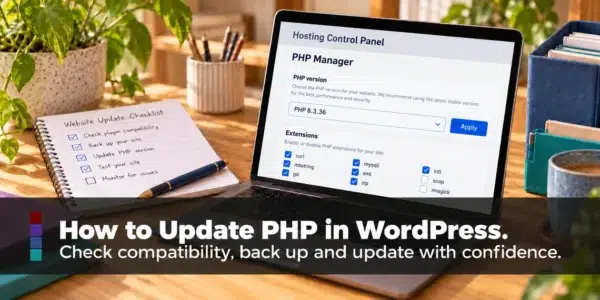
It is also worth knowing where your PHP version sits in its support timeline. PHP 8.2 receives security fixes until 31 December 2026, and WordPress recommends PHP 8.3 or greater. Planning that move calmly is easier than rushing it later.
6. Note any temporary effects on your business
Your host may introduce temporary restrictions while responding to an incident. Read its notice so you know which website functions could be affected.
For example, restrictions on file uploads could affect an enquiry form that accepts attachments.
If a feature your customers need is temporarily unavailable, provide another suitable contact route. Keep a note of anything that needs testing once restrictions are removed.
An error is something to investigate, rather than automatic proof of a hack. Give your host the page address, what happened and when you noticed it.
What should you avoid doing?
Avoid switching PHP versions simply to experiment, installing several extra security plugins or deleting unfamiliar files without understanding what they do.
A WordPress maintenance plugin does not isolate vulnerable PHP. Backups, passwords and monitoring do not replace the patch either.
Focus on confirming the host’s response, preparing for any necessary change and getting help with decisions you are unsure about.
Want someone to work through the checks with you?
You do not have to turn a hosting notice into a whole day of trying to understand technical terms.
Through my online WordPress Help, we can look at what your website is using, understand your host’s advice and work out what needs attention.
If a PHP version change is needed, I can support you with preparation and checking the WordPress website afterwards.
Book online WordPress Help with Natalie