Have you spotted a warning about your website’s PHP version and wondered what you’re supposed to do with it?
Perhaps you’ve logged into your hosting account and found your site is still using PHP 7.4. Or even PHP 5.6.
I still come across self-managed websites using both of these versions. If that’s your website, you’re certainly not the only one.
Updating PHP is part of looking after a WordPress website. But there’s a little more to it than choosing a newer number from a dropdown.
Before you change anything, it helps to understand what PHP does, what your website needs and how to get things working again if the change causes a problem.
Let’s walk through it.
What is PHP, in plain English?
PHP is one of the programming languages WordPress uses to make your website work.
When someone visits your website, PHP runs behind the scenes on your hosting server. It helps WordPress put together the page they see and carry out tasks such as processing information.
Your theme and plugins can use PHP too.
You don’t need to learn how to write PHP to manage your website. But you do need to know that the version running on your hosting account affects the software your website can use.
Updating WordPress and updating PHP are separate jobs. Updating one does not automatically update the other.
What do the PHP version numbers mean?
Think of PHP versions as different generations of the same software.
You might see numbers such as:
- PHP 5.6
- PHP 7.4
- PHP 8.2
- PHP 8.3
- PHP 8.4
- PHP 8.5
A higher number means a newer release. New releases can bring improvements, changes to how code works and the removal of older features.
Sometimes you’ll see a third number, such as PHP 8.3.12. That last number identifies a smaller update within the PHP 8.3 release family.
The important thing is that PHP versions have a support lifespan.
Eventually, an older version stops receiving fixes from the PHP project. Your website might still load, but that does not mean its PHP version is still supported.
PHP 5.6 and PHP 7.4 have both reached the end of their official support. So have PHP 8.0 and PHP 8.1.
Is PHP 8.2 new enough?
As of October 2026, PHP 8.2 still receives official security fixes, but that support ends on 31 December 2026.
PHP 8.3 receives security support until 31 December 2027, while PHP 8.4 and PHP 8.5 have longer support windows. You can check the current dates on the official PHP supported versions page.
WordPress currently recommends PHP 8.3 or higher. However, your WordPress version, plugins, theme and any custom code also need to work with the version you choose.
The aim is a supported PHP version that your website has been checked and tested with.
Start by checking your current PHP version
In your WordPress dashboard, go to:
Tools → Site Health → Info → Server
Look for PHP version and make a note of the full number. If you are checking after a PHP security alert, here is what that number can tell you.
If you find PHP 5.6 or 7.4, pause before making a large jump on your live website.
There may also be older plugins, themes or custom code that need attention. This is a good point to get help planning the update, especially if your website takes payments, bookings or member logins.
Before making changes, back up your website
Please don’t skip this bit.
Before updating PHP, WordPress, plugins or themes, create a fresh backup that includes both your website files and database.
Check that the backup completed successfully and that you know how it would be restored.
There’s another detail to understand here: a website backup does not usually include your hosting account’s PHP settings.
Restoring your website files may not change PHP back to its previous version. You need a record of those hosting settings too.
Before you begin, make sure you have:
- A completed website backup.
- Access to your hosting account.
- A note of your current PHP version.
- A way to contact your hosting provider if you need help.
If you don’t know how you would recover the site, sort that out before making the change.
Make a list of your plugins and themes
Your website is more than WordPress itself.
Your plugins add features, your theme controls much of the design, and you may also have custom code running behind the scenes.
Current releases of many widely used, actively maintained plugins and themes support modern PHP versions. However, the version installed on your website matters.
A developer’s latest release might support PHP 8.3, while the older copy on your website does not.
Where to find your plugins
Go to Plugins → Installed Plugins in your WordPress dashboard.
For each plugin, make a note of:
- Its name.
- The installed version.
- What it does on your website.
- Whether it is active.
- Whether an update is available.
Include paid plugins and any code snippets or custom plugins you use.
If you don’t know what a plugin does, mark it for review. Avoid deleting it simply because you don’t recognise its name.
Where to find your theme
Go to Appearance → Themes.
Record your active theme and its version. If you use a child theme, record the parent theme as well.
Custom changes in a child theme may also need checking.
How to check PHP compatibility
Start with the information provided by the plugin or theme developer.
For plugins from WordPress.org, you can often select View details beneath the plugin’s name in your dashboard.
You can also visit its listing in the WordPress.org plugin directory.
Look for:
- PHP requirements.
- Recent updates.
- Changelog entries mentioning PHP compatibility.
- Developer documentation.
- Support discussions about your intended PHP version.
Minimum PHP version does not mean confirmed compatibility
This is an easy detail to miss.
If a plugin lists PHP 7.4 as its minimum requirement, that tells you the lowest version it needs. It does not prove that it has been tested with PHP 8.3, 8.4 or 8.5.
Also, Tested up to on a WordPress.org plugin listing refers to the WordPress version, rather than the PHP version.
For paid plugins and themes, check the developer’s own website, documentation or support team.
If the information is unclear, ask whether your installed version supports the PHP version you intend to use.
No clear answer means compatibility is still unconfirmed.
Prepare your website before changing PHP
Once you’ve checked compatibility, review any available WordPress, plugin and theme updates.
Where those updates support your current PHP version, you can apply them first, checking the website as you go.
However, an old PHP version may prevent you from installing newer releases. That can make the order of updates more involved.
If your website needs newer PHP to update its plugins, but its old plugins may not work with newer PHP, get help planning the change.
Where possible, use a staging site. This is a separate copy of your website where you can test changes before applying them to the live site.
Choose a time when you can stay available to check the results. Avoid squeezing a PHP change in just before you need to leave.
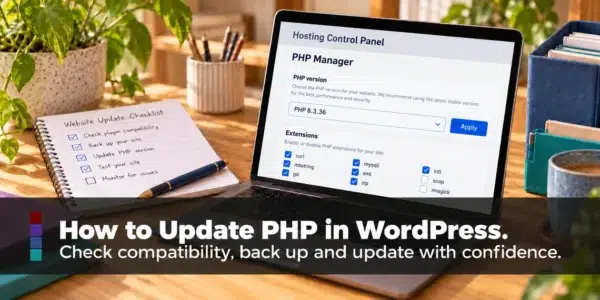
Find the PHP settings in your hosting account
PHP runs on your hosting server, so the version is normally changed through your hosting account.
Depending on your provider, the tool may be called:
- PHP Manager.
- Select PHP Version.
- MultiPHP Manager.
- PHP Settings.
The screens and buttons vary. Some hosts manage PHP changes for you.
If you host several websites in one account, check which domain or websites the setting affects before continuing.
Also, check whether your host will let you return to the original version if needed. Don’t assume an older version will remain available simply because your website is currently using it.
Record your current PHP extensions
Before changing versions, take screenshots of your existing PHP settings, including any ticked extensions.

PHP extensions add extra abilities to PHP. They help it handle tasks such as working with images or communicating with your website’s database.
They are different from WordPress plugins.
Some hosting panels let you manage extensions yourself. Others handle them automatically.
The available extensions, their names and their default settings can differ between PHP versions. Some are built in, while others need to be enabled.
Your screenshots give you a useful record if you need to investigate a missing feature or return to the earlier setup.
Make sure your notes show:
- The original PHP version.
- Which extensions are ticked for that version.
- Any other PHP settings you have been advised to record.
Avoid assuming every ticked box should be copied exactly to the new version. Your host can help confirm which extensions are needed and how they are provided.
Choose your PHP version and apply the change
With your backup completed, compatibility checked and settings recorded, select your chosen supported PHP version.
For example, if you have confirmed your website’s software supports PHP 8.3 and that is your planned version, select PHP 8.3 from the available options.
Depending on your hosting panel, you may then need to select Apply, Save or Set as current.
Follow your host’s instructions and allow time for the change to take effect.
Now check the website.
What if WordPress reports a missing MySQL extension?
One error you may encounter says that the PHP installation is missing the MySQL extension required by WordPress.
In plain English, WordPress cannot access the PHP feature it needs to communicate with its database.
WordPress normally uses the mysqli extension for this connection.
If your hosting panel lets you manage extensions:
- Return to the extension settings for the PHP version you just selected.
- Look for mysqli.
- If it is available and unticked, enable it and save the change.
- Recheck your website.
Some hosts provide this through a differently labelled package, such as nd_mysqli, or manage it for you.
If the extension is missing, already enabled or the error continues, contact your host. Avoid ticking several similar-looking options and hoping one works.
If your website still won’t load, return to your previous PHP version
If you’ve changed to PHP 8.3, checked the required mysqli extension and your website still won’t load, pause there.
You don’t need to keep changing settings while your website is unavailable.
Provided your host still offers it, switch back to the original PHP version that was working before the change.
- Return to your hosting account’s PHP settings.
- Select the original PHP version you recorded before starting.
- Select Apply, Save or the equivalent button in your hosting panel.
- Open the PHP extension settings for that original version.
- Compare the ticked extensions with your screenshots or notes from before the change. Restore the original selections if they have changed.
- Save any changes and check your website again.
This is why recording both your original PHP version and its extensions matters. Switching back to the old version may not be enough if its extension settings have also changed.
If your website starts working again, you have a temporary way to keep it available while you get help investigating what prevented the update.
Returning to an unsupported PHP version is a temporary recovery step, rather than a long-term fix.
If your website still won’t load, or your original PHP version is no longer available, contact your hosting provider and get in touch for help.
A PHP rollback also does not undo plugin, theme or WordPress updates. If you changed those as well, mention this when asking for help, as recovery may need more than changing the PHP setting.
If your website loads, check more than your homepage
A homepage that loads is a useful first check, but you also need to test what people do on your website.
Check the features that matter to your business, including:
- Opening key pages and blog posts.
- Logging into WordPress.
- Editing and saving a page.
- Sending a test contact form and checking delivery.
- Uploading an image.
- Testing bookings, member access or course access.
- Testing the basket and checkout if you sell online.
Use an appropriate test method for payments so you don’t create unwanted charges.
You can also return to Tools → Site Health → Info → Server to confirm that WordPress is using the PHP version you selected.
Check for updates again
Once the website is working on the new PHP version, check Dashboard → Updates again.
You may now be able to install plugin or theme releases that required a newer version of PHP.
Keep a working backup and check the website after further updates. Changing several things at once can make it harder to work out which change caused a problem.
If you do make further updates, remember that returning to the original PHP version later may no longer work with the newly updated software.
What if errors or other problems appear?
Sometimes the issue is a missing extension. Other times, older code in a plugin, theme or custom feature needs attention.
You might find that the website loads, but a particular form, page or feature no longer works.
At this point, I would usually check the available error logs and, where needed, use debugging with errors recorded privately rather than displayed to visitors.
Those records can help identify what failed and where to investigate next.
That needs a closer look at the individual website.
Make a note of what you changed, what stopped working and any error message you received. This gives your host or developer a useful starting point.
Avoid repeatedly switching versions or changing unrelated settings without understanding the error.
Want help updating PHP on your WordPress website?
If you’ve reached this point and thought that you’d feel better having someone work through it with you, that’s something I can help with. 💜
You don’t need to understand every extension or work out what an error log means before getting in touch.
I can help you review your setup, plan the next steps and work through the update, whether you want to learn alongside me or would prefer help carrying out the work.
A WordPress Power Hour gives us focused time to look at your website and what it needs. The work we can complete will depend on its age, setup and any issues we find.
If you’re looking for ongoing support as you manage your own website, explore the WordPress Learners Lounge.
You can learn to look after your WordPress website without having to figure out every technical problem alone.